Dashboard walkthrough
The dashboard is a single-page React app served by the same FastAPI app as
the REST API — once built, its static files live at
src/celery_manager/dashboard/static/ and are mounted at the app's root (/ standalone, or the prefix you mount it
under; every API and asset URL is relative, so either works). It uses
HashRouter rather than browser history routing (the server has no
catch-all fallback route, so a real GET for e.g. /tasks/abc would 404
before React ever loads — routing on the URL fragment keeps every deep
link resolving to the same / request the server actually serves).
Every screen calls the REST API with credentials:
"include" so the session cookie set at login is sent automatically (the
SSE subscription uses withCredentials: true for the same reason).
There is no global 401 interceptor. App.tsx calls whoami() exactly
once, on mount, to decide between the login screen and the app; nothing
re-checks after that. So if your session expires while a tab is open, the
next call fails in place — the task list shows "Couldn't load tasks.", the
settings screen shows "Your session has expired. Sign in again to save
settings." — and you stay on the screen you were on until you reload. That
is a rough edge, not a design: reloading takes you to the login screen.
Login
The entry screen, shown when the mount-time GET /api/whoami comes back
unauthenticated. A simple username/password form:
- Inputs are locked (
disabled) while a login request is in flight, so a slow network can't produce a double-submit. - A failed login shows an inline error (
role="alert") without leaking whether the username or the password was wrong — both401cases are a single generic message. - If the mount-time check fails at the network level (server unreachable, DNS/CORS issue), you get a distinct "Connection problem" screen with a Retry button instead of the login form — a server that isn't answering is a different problem from a bad password, and showing a login form you cannot possibly submit would be a lie. A network failure during an actual login attempt is likewise kept out of the "invalid credentials" message.
On success, the app switches straight to the task list; there's no separate "remember me" control — the session cookie lasts 7 days by default (see Configuration).
Navigation
A thin persistent nav bar sits above every authenticated screen: the
brand mark and wordmark on the left, then Tasks / Schedules /
Audit Log / Settings (NavLink, so the active screen is
highlighted), and a three-way Auto / Light / Dark theme control on the
right, and a Sign out button. Sign out calls POST /api/auth/logout,
which clears the cm_session cookie, and returns you to the login screen; while
the request is in flight the button reads "Signing out…", and if it fails an
error message is shown and you stay signed in. Each screen underneath still owns its own page header — the nav bar
deliberately doesn't duplicate per-screen titles or actions.
The brand mark and wordmark are whatever the deployment has been branded with; see Appearance and branding below.
Task list
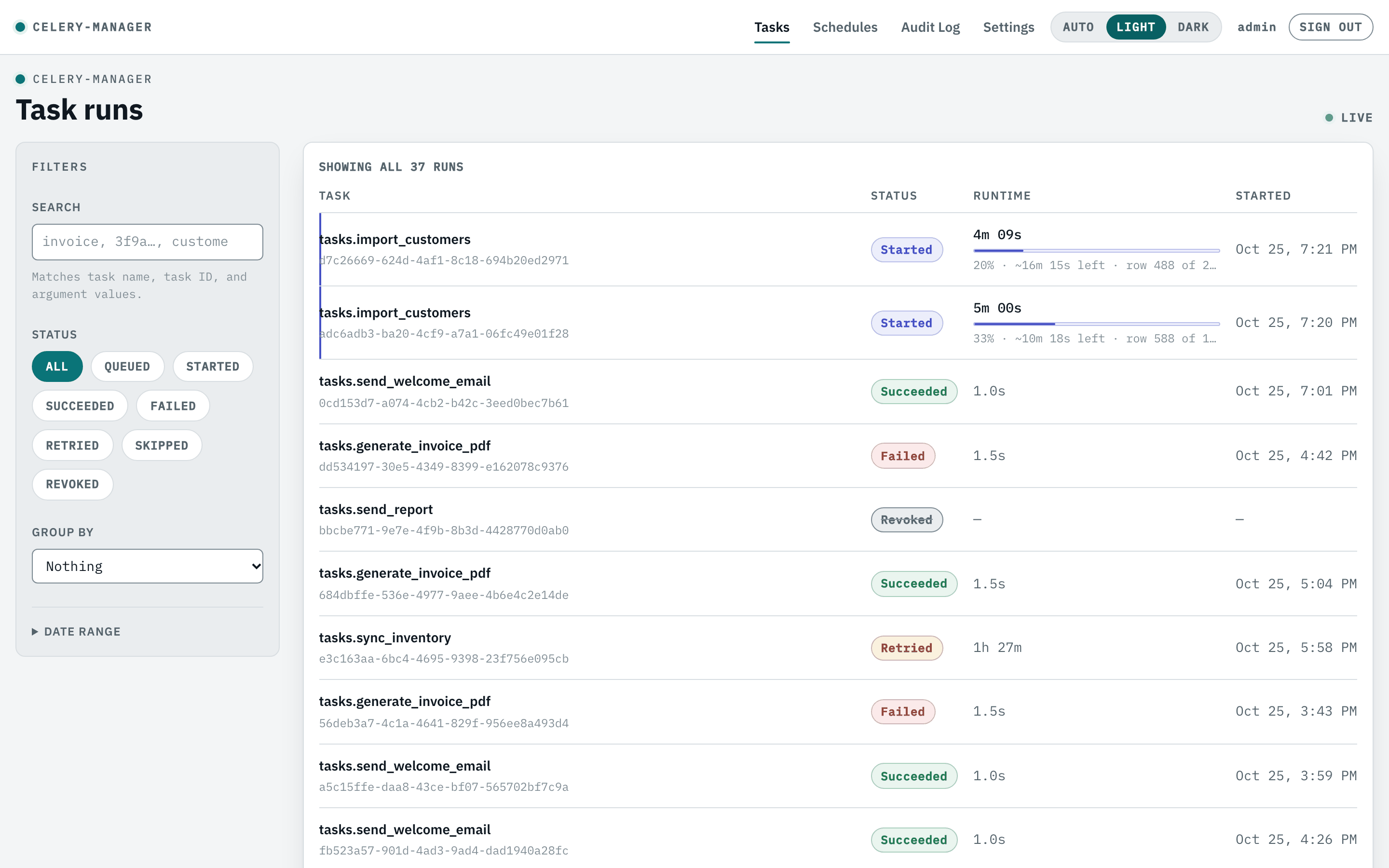
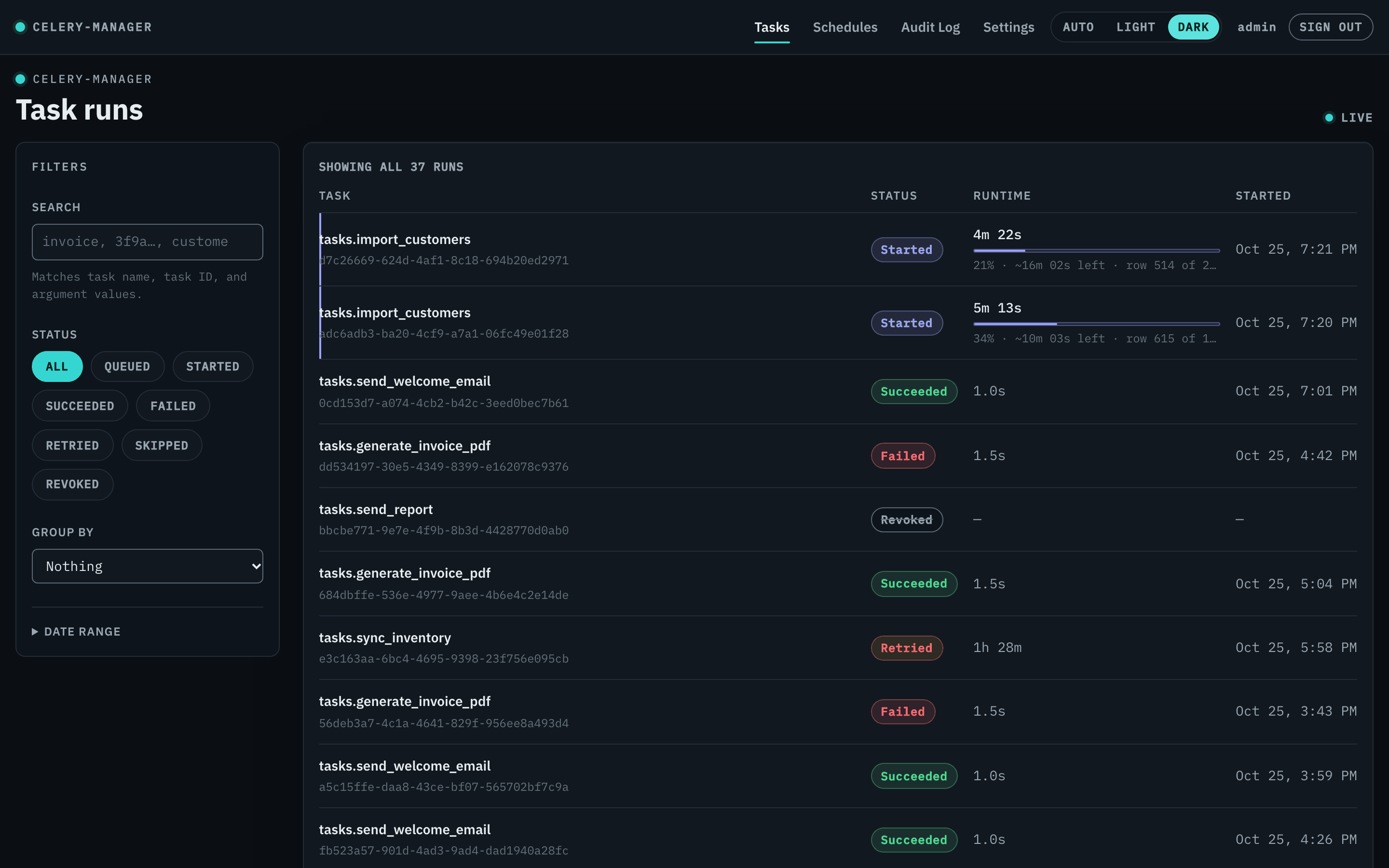
The default screen after login (/), and the one that gets the most
attention. Filters live in a panel down the left; results, and everything
that describes them, live to the right.
Filter panel
- Search — matches task name, task ID, and argument values, debounced
so a re-query doesn't fire on every keystroke. It is a substring match
over the JSON text of
args/kwargs, so searchingalicefinds a run whose kwargs contain it; there is no way to expresskwargs.user == "alice". See REST API. - Status —
allplus every status (queued/started/succeeded/failed/retried/skipped/revoked). - Group by — nothing / status / task name / date. Grouping is done in the browser over the rows currently loaded, not across the whole history, and the group headers say so ("3 loaded" rather than a total).
- Date range — folded away by default, since it is the least-reached control. Dates are sent as UTC instants; a picked end date is widened to the end of that local day, so your own last day doesn't silently drop out of the results.
- Active filters appear as removable chips with a Clear all, and the same list is repeated in the "no matches" empty state — so an empty table tells you which filter emptied it instead of leaving you guessing.
Below roughly 1024px the panel collapses behind a Filters toggle
carrying a count of what's active. The collapse is display: none on the
rail (the markup stays mounted, so your typed filter state survives a
toggle), which is the one hiding technique that also takes the inputs out
of the tab order — a collapsed panel never leaves focusable controls
sitting invisibly behind the table.
Results
- "Showing 50 of 1,308 runs" — the total reflects the filters, so it answers "how much is there of this", not "how big is the table".
- Runtime shows a live-ticking elapsed time for a running task and a final duration for a finished one.
-
Progress — a running task that reports a known total via
report_progress()gets a bar, a percentage, its own message, and a projected time remaining. A task that never reports progress gets none of that and shows elapsed time only: a bar sitting at 0% would read as a stuck task, so "not instrumented" never renders as 0%. If such a task stops reporting for a while, the row says how long it has been quiet and drops the estimate — extrapolating a rate that has visibly stopped would keep counting down as if nothing were wrong.Open-ended progress is thinner here than on the detail page. With no total there is no percentage and no bar, and the row shows only the task's
progress_message— the raw count is not rendered in the list, and the "no update for …" stalled note is gated on there being a percentage, so it doesn't appear either. An open-ended reporter that passes nomessageis therefore indistinguishable in the list from one reporting nothing at all. The task detail page shows the count and the quiet time in both cases; use it when you are watching one open-ended run.A running task's percentage is capped at 99% until it genuinely reports completion — rounding 0.998 up reads as a finished task that is somehow still working. The list and the detail page share one derivation (
lib/taskProgress) so they can never quote two different percentages for the same run. - Bulk retry — available while thefailedfilter is active. The selection is dropped whenever the filter, search, dates, page or mode change, and is separately pruned against the visible rows on every refresh, so a bulk retry can never act on a row you can no longer see. - Each row links to that task's detail page.
Live mode and history mode
The list has two modes, and it always says which one it is in.
Live is the default: it polls every 5 seconds, and Load more widens the page up to the API's 500-row ceiling. Every refresh re-requests the whole span you have open rather than just the newest page, so a background poll can never collapse your loaded rows back to page one.
History is for reading further back. You get into it from Browse all
N runs by page under the table, or from Browse older runs when a live
page has hit the 500-row ceiling. It pages explicitly through the full
filtered total: a ledger above the table reads Runs 501–550 of 1,308, and
a pager below it reads Page 11 of 28 between ← Newer and Older →
buttons (each move scrolls you back to the top of the table). The poll is
switched off while you are in history — which is what makes offset paging
trustworthy, since rows can't shift under you between clicks; SSE events are
ignored in this mode too. The header indicator changes from a pulsing
Live dot to a still Paused one, and a bar above the table offers
Back to live.
Live updates
The screen opens an SSE connection (GET /api/stream) on mount and
refetches when a task event arrives (in live mode only — see above), rather
than patching individual rows from the event payload. Alongside that, it
polls every 5 seconds.
The poll is not redundant: the SSE event bus lives in the API process's
memory, but the documented deployment runs the events listener as a
separate OS process which cannot publish into it — so in a standard
deployment the SSE connection opens and then delivers nothing, and the
poll is what actually keeps the list current. See
REST API: live updates.
A refetch never replaces the rows with a spinner: only the first load shows a full "Loading tasks…" state. A refetch you caused — changing a filter, or an SSE event arriving — dims the table briefly while the new data is in flight. The 5-second poll deliberately does not dim, since a table that flickered every five seconds on its own would be worse than a table that quietly updates. A failed background refresh shows a banner above the still-visible rows; a failure with no rows behind it shows an error state with Try again.
Task detail
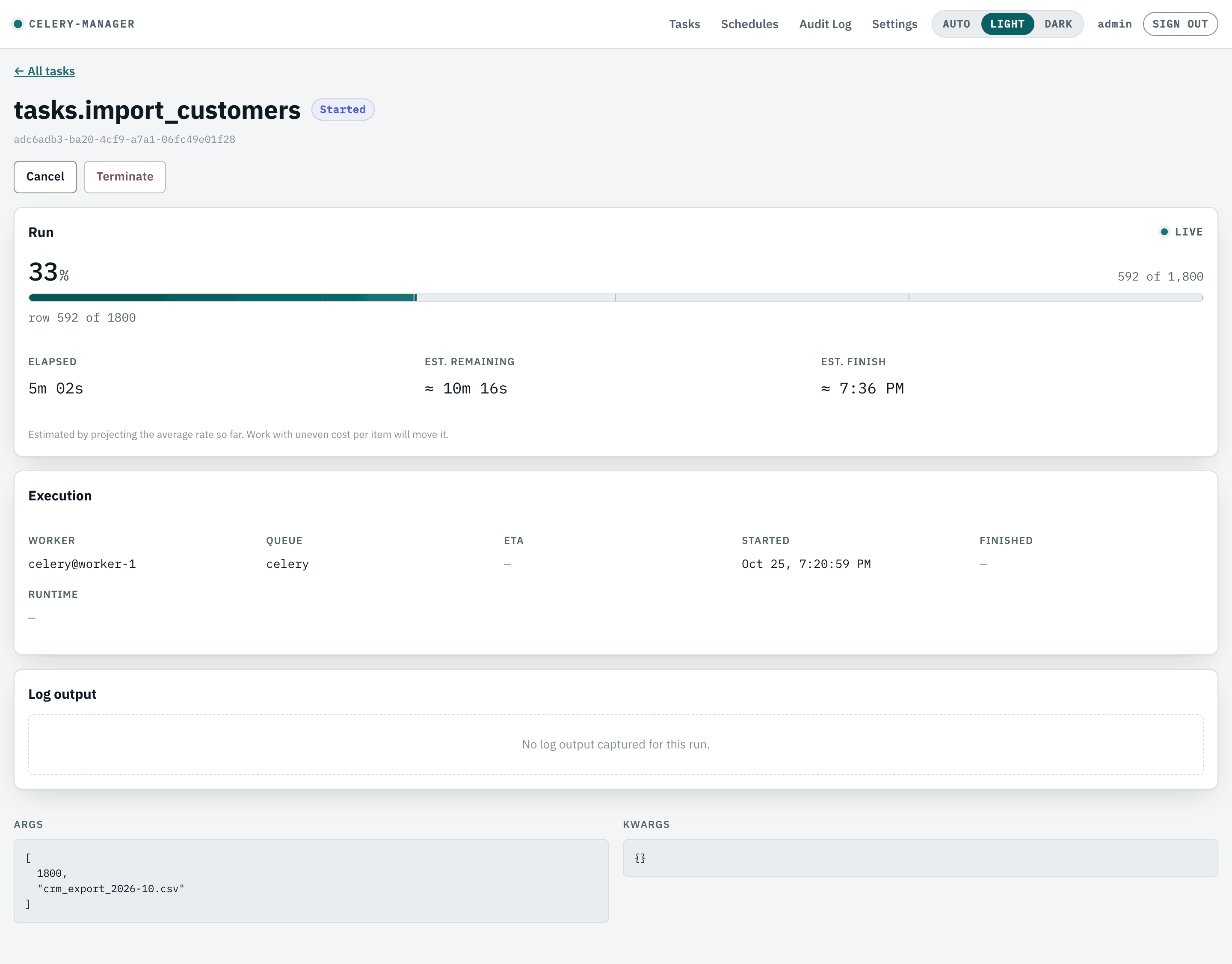
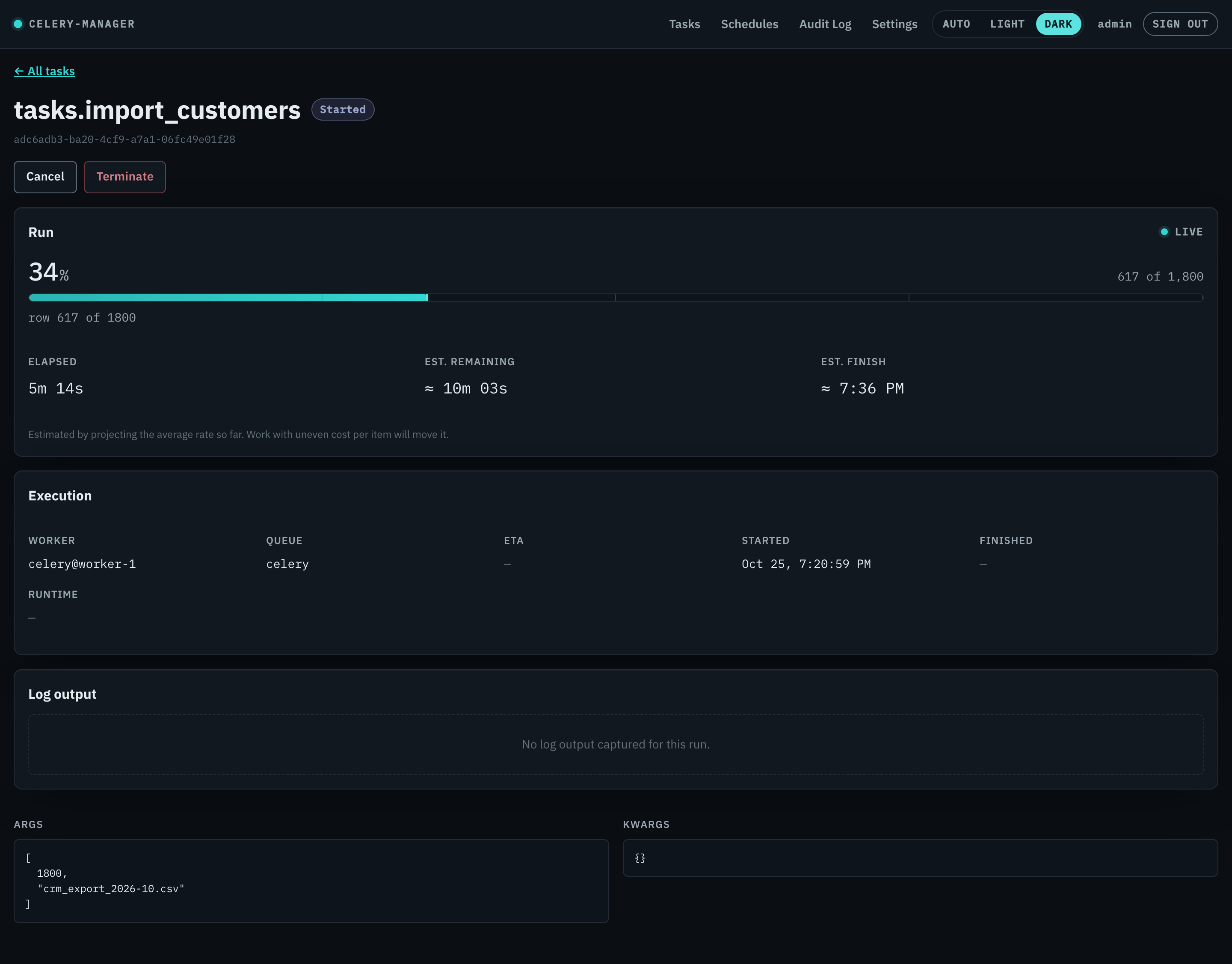
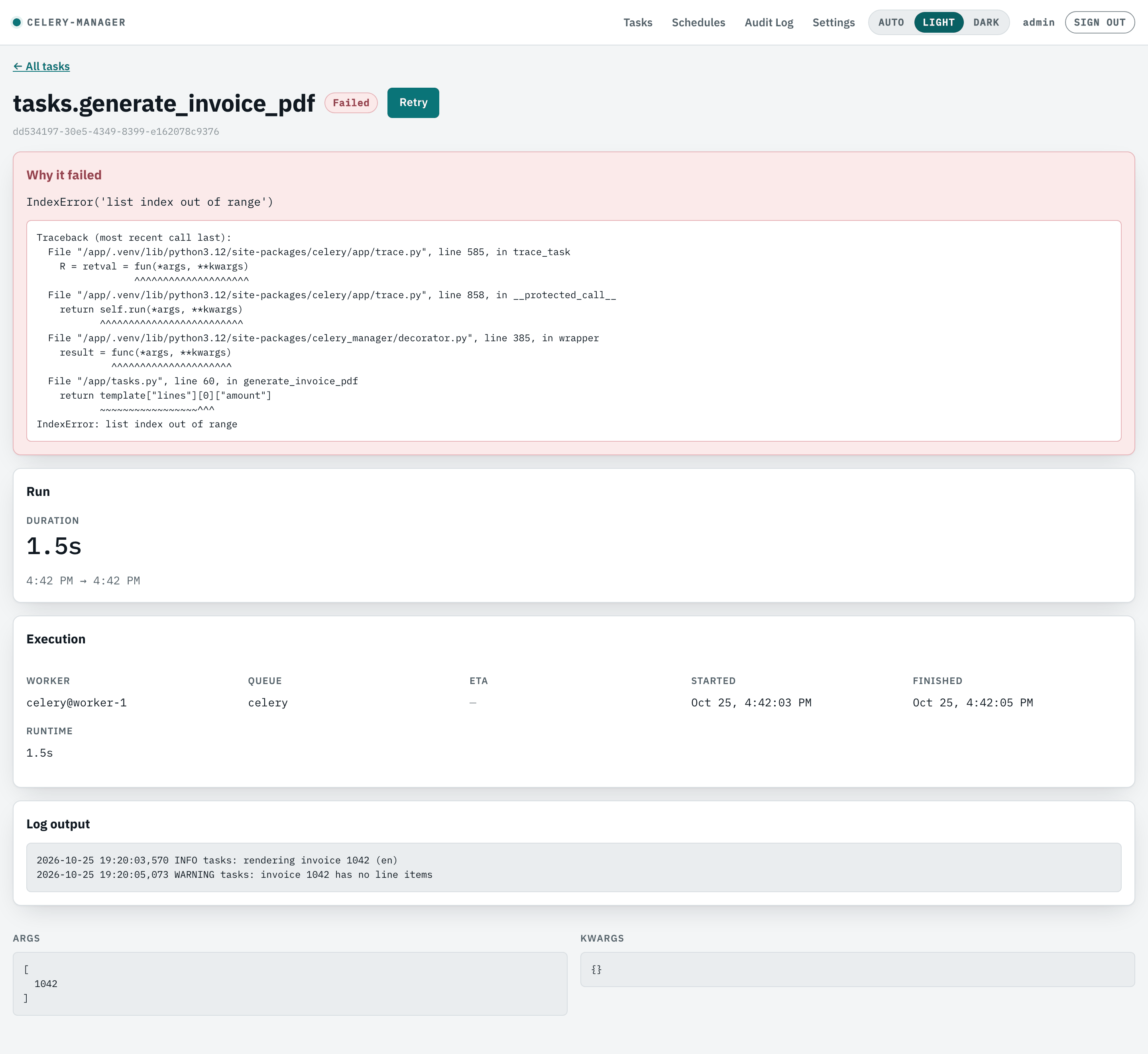
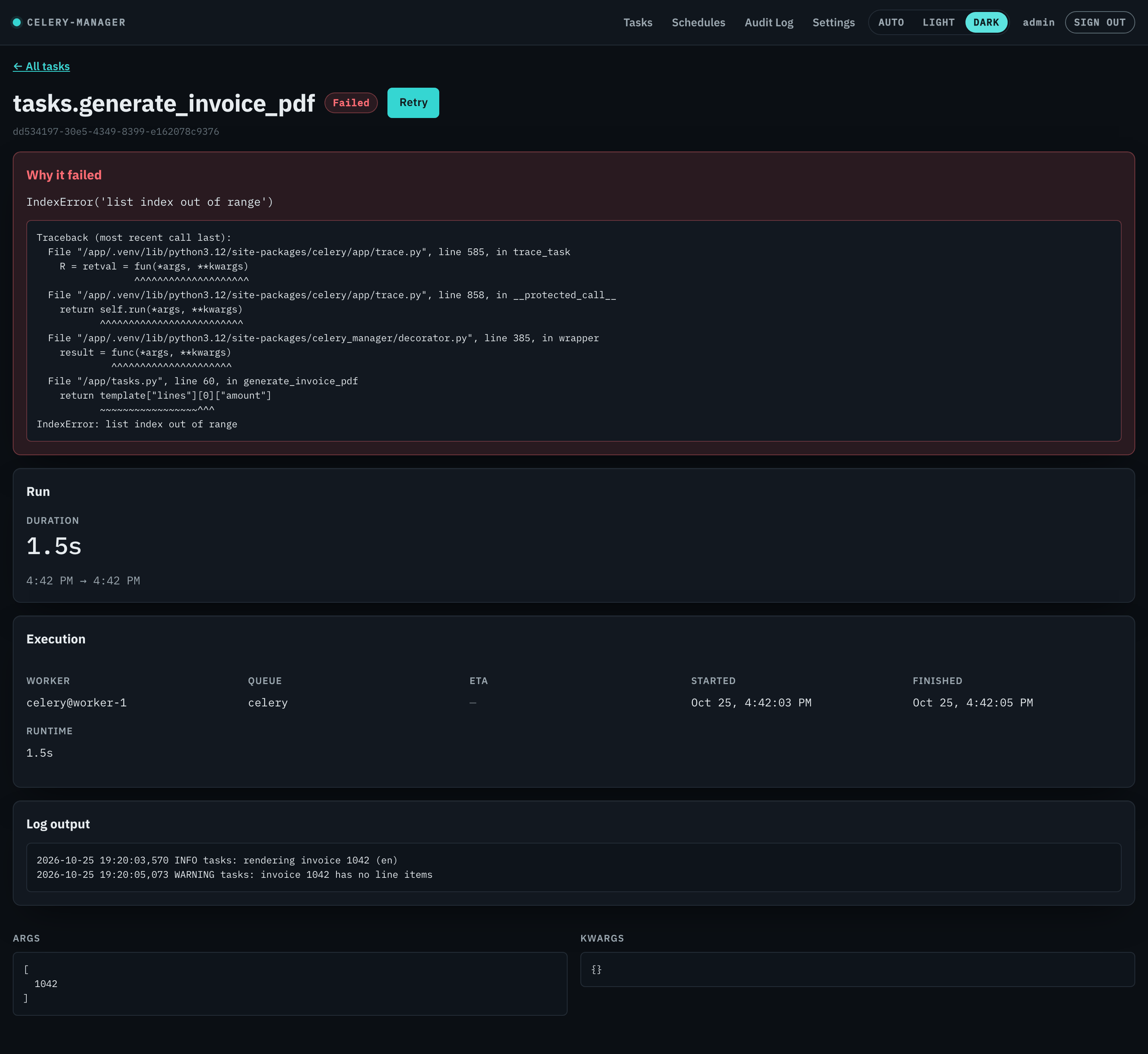
/tasks/:taskId. Shows one task run in full:
- Status badge, and a Retry button shown only when
status ===
  "failed"
— callsPOST /api/tasks/{task_id}/retryand, on success, shows a link to the newly created run (new_task_id) rather than navigating away, so the user can compare old and new runs side by side if they want. - Args and kwargs, pretty-printed as JSON (the API returns them as raw JSON strings; the page re-parses and re-serializes with indentation for display, falling back to the raw string if parsing fails).
- A "Why it failed" panel — exception message plus full traceback — shown only when the run has a recorded exception.
- A log output panel showing everything captured via
@track's log capture during the run (see The decorator), or an empty state if the task wasn't decorated or produced no output. - A Run panel: for a running task, the progress bar, percentage, message, live elapsed time and an estimated finish; for a finished one, the total duration and the start/finish times. The estimate is labelled and prefixed as an estimate, and its projected clock time deliberately omits seconds — second-level precision on an extrapolation would claim accuracy it doesn't have. As on the task list, open-ended progress shows a count with no bar, and a run that has gone quiet says so and drops the estimate.
- An Execution panel: worker, queue, ETA, started, finished, runtime.
A value that isn't recorded reads as
—with the reason — "Still running", "Hasn't started yet", "No ETA set", or a plain "Not recorded" where nothing more specific is knowable — never as a blank cell you have to interpret. In practice ETA always reads "No ETA set", because nothing in celery-manager currently writes that column; see the REST API note. Worker and queue read "Not recorded" whenever the events listener wasn't running. - A Retry lineage panel, shown only when there is lineage to show: the run this one was retried from, and every run retried from it (there can be several — retrying a failed run repeatedly is normal). Each is a link, so the chain can be walked in both directions.
Panels are ordered for someone debugging at 2am: what broke, how far it got and how long it took, which worker and queue, whether anyone has already retried it, then the log, then args/kwargs as the recipe to reproduce it.
While the run is still active — queued, started or retried, not
just running — the page refreshes itself every 2 seconds, and stops the
moment the run reaches a terminal status, so a finished run's page isn't
left polling forever. If one of those refreshes fails the page keeps the
data it has and says so ("Live updates paused… Still retrying every 2s.")
rather than blanking.
Schedules list
/schedules, and where the Schedules nav link lands. A card per
configured periodic schedule, backed by GET /api/schedules: the schedule's
name (a link into its occurrences view), the task it runs, and its
schedule_spec as Celery renders it (<freq: 2.00 hours>). A schedule with
enabled: false carries a disabled badge — though nothing sets that flag
today, so in practice every card is enabled.
The list is a pure read of the periodic_schedules table, which
create_app() syncs from celery_app.conf.beat_schedule once at
startup. A schedule added to your beat config while the dashboard process
is running will not appear until it restarts. Empty state: "No periodic
schedules configured yet."
Schedule occurrences (future-schedule view)
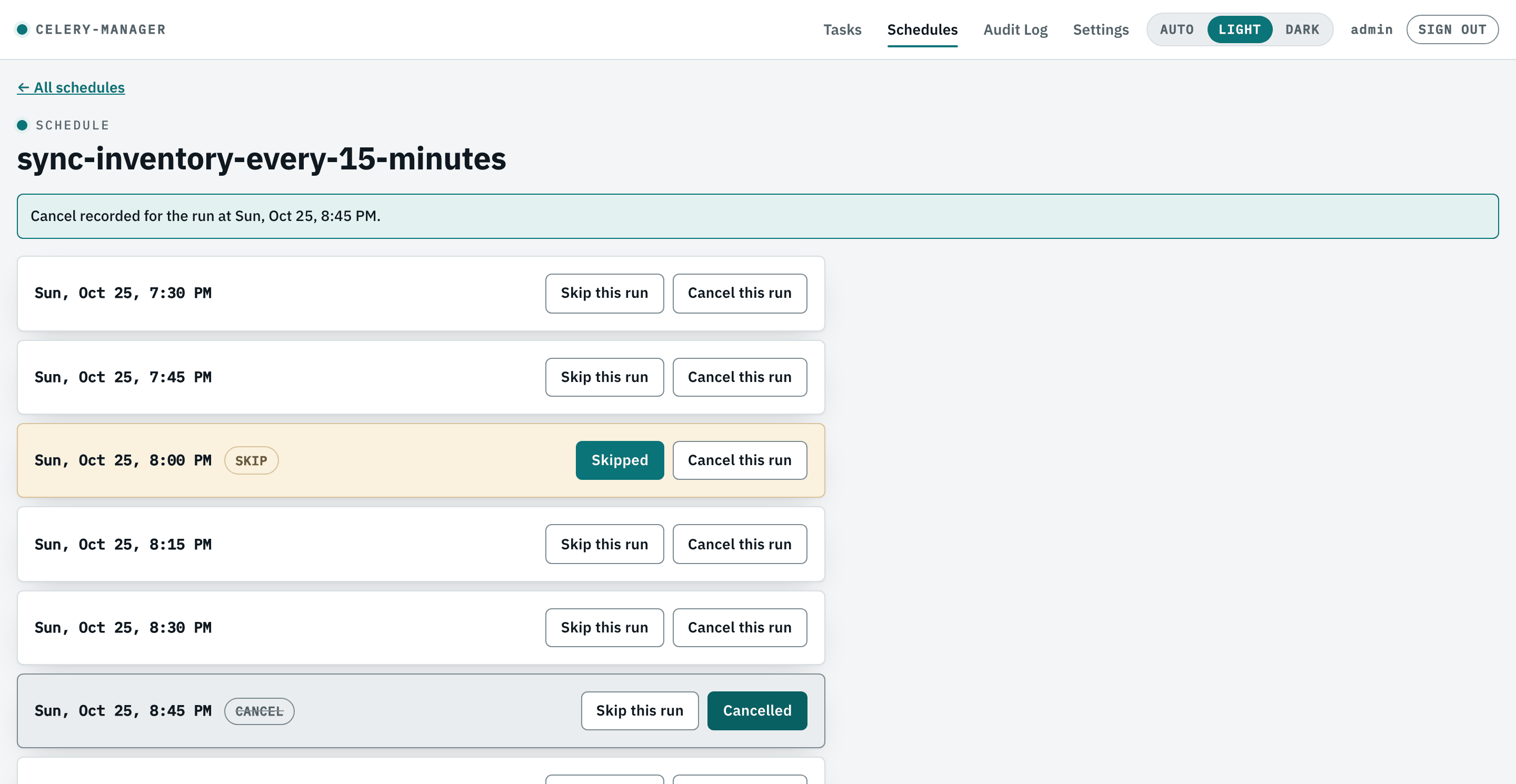
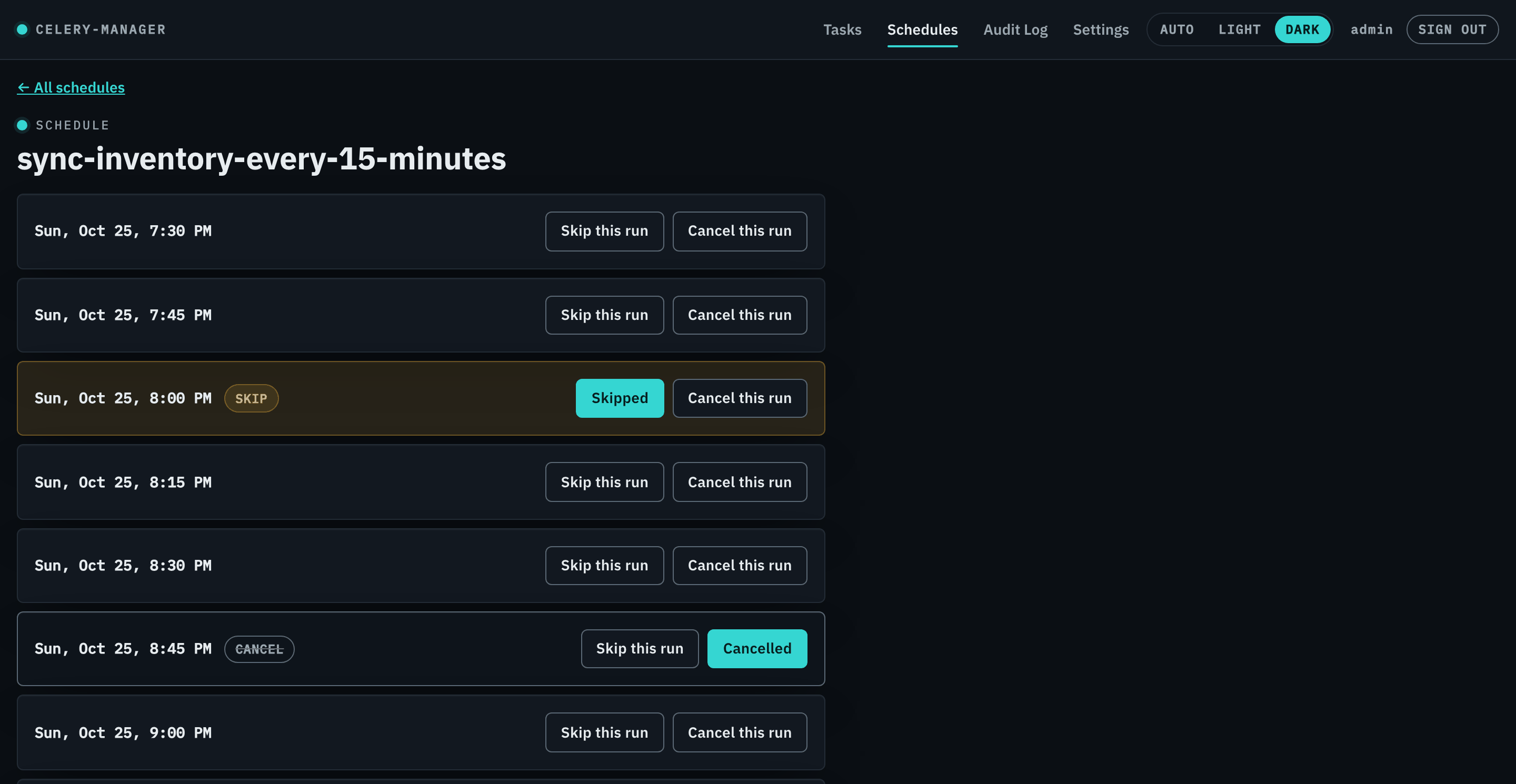
/schedules/:name. Lists the schedule's next 10 computed occurrences
(GET /api/schedules/{name}/occurrences) and lets a user pause one:
- Each row is in one of three states, computed client-side from the API
response: pending (no override yet), paused (an override with
action
skiporcancelexists — both read as "a human has already decided this occurrence's fate"), or resolved (consumed: true, meaning the occurrence's scheduled time has actually passed — in practice every row this screen shows is still in the future, so this state only appears defensively, if the API were to ever return a consumed row). - A ← All schedules back link returns to the schedules list, which is where you arrived from.
- Skip this run / Cancel this run buttons on each non-resolved
row call
POST /api/schedules/{name}/occurrences/pausewith that row'starget_timeand the chosen action. A button already matching the row's current action shows as pressed/labeled accordingly (e.g. "Skipped") rather than being hidden, so re-clicking the same action or switching to the other one both work as an update in place — matching the pause endpoint's own update-in-place idempotency (see REST API: occurrence-matching nuances). There is no "reschedule" control in the UI, and the API no longer accepts that action value either (it returns422) — the data model still has the column, but no reschedule behavior is implemented. - A per-row busy/error state means one occurrence's pause request failing doesn't block or hide the others; a page-level success notice auto-dismisses after 6 seconds.
Interval schedules
Interval schedules (schedule(run_every=…) / bare seconds / timedelta). Celery beat fires these at "previous fire + interval", and beat's own record of the previous fire isn't visible to the dashboard. celery-manager therefore anchors upcoming occurrences to the schedule's most recent observed run: the newest task_runs row with that schedule_name, including skipped runs and excluding dashboard retries. It then projects forward by the interval. Once the schedule has run at least once while celery-manager was recording, the times shown are stable and match beat's real fire times to within queue latency, and a skip or cancel matches the real run.
Limitations:
- Before the first observed run, occurrences are only estimates ("now + interval") and shift on every page load. A skip saved then may not match the real fire. Wait for one run before pausing interval schedules.
- Ad-hoc calls (.delay()/apply_async of the same @tracked task outside beat) are recorded under the same schedule name and will re-anchor the projection. A task that calls self.retry() also re-stamps the run's start time.
- Beat restarts: beat may fire an overdue entry immediately when it comes back up after downtime, which is off the projected grid until the next observed run re-anchors it.
- relative=True interval schedules aren't modelled.
- The @track(schedule_name=…) value must equal the beat_schedule key. This was already required for skips to work.
Audit log
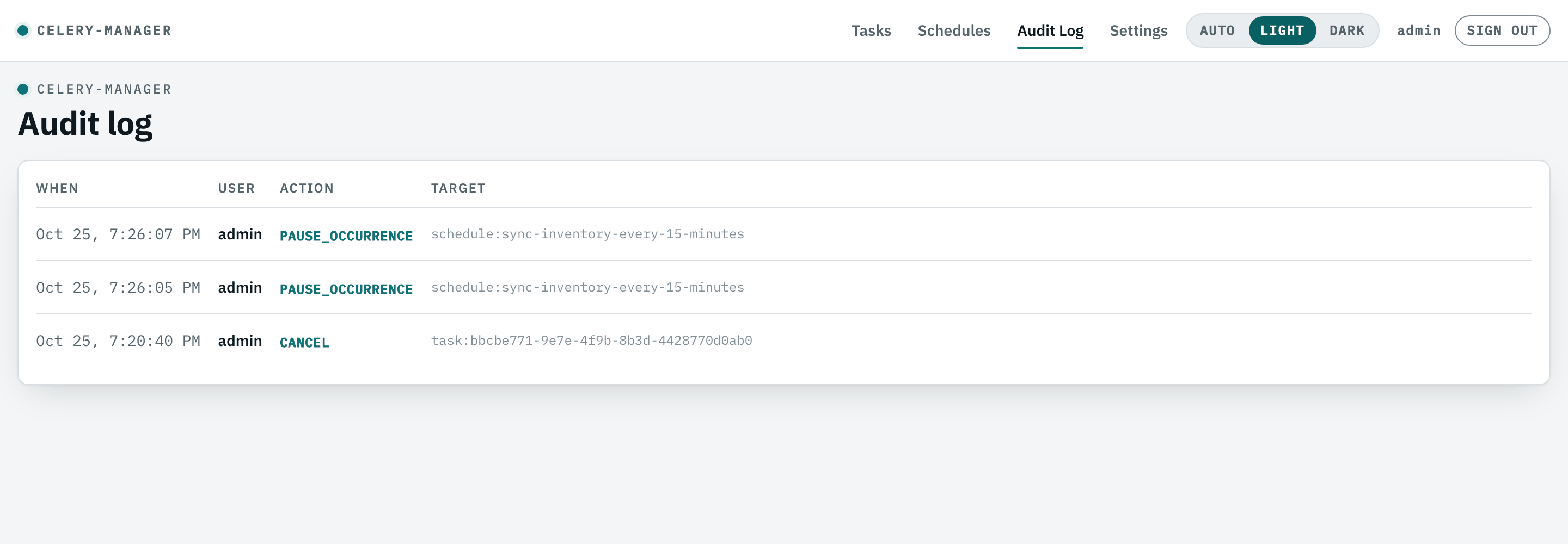
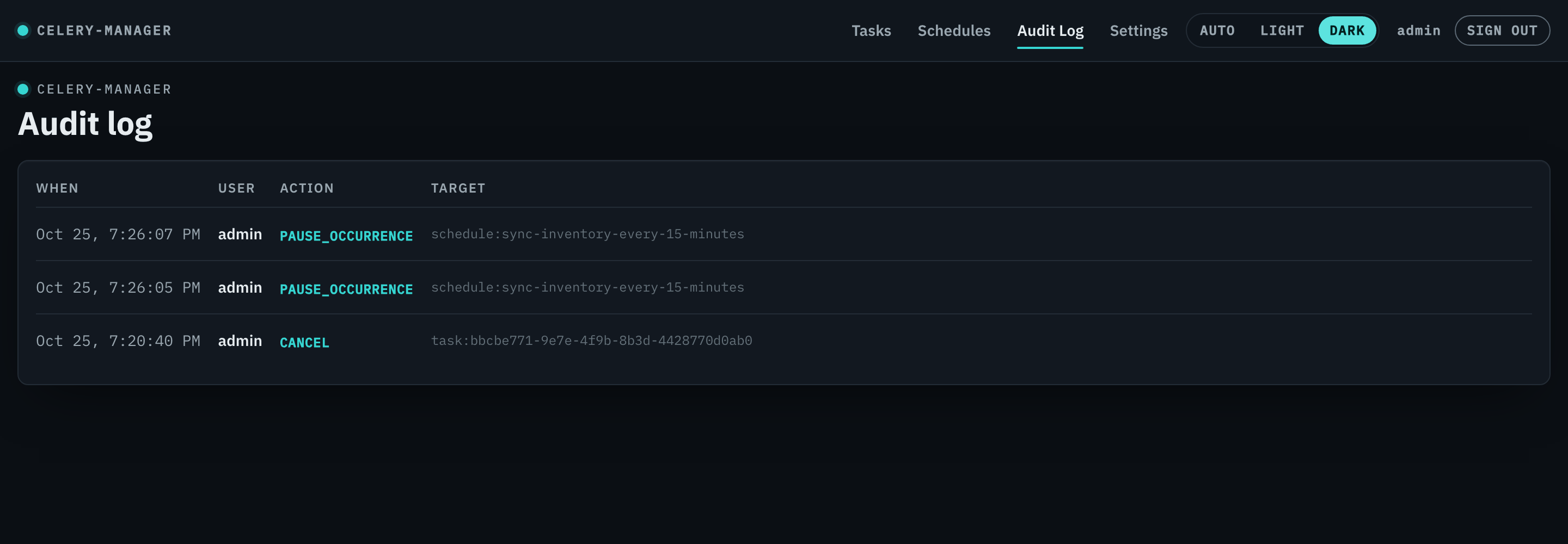
/audit. A read-only table of every manually-triggered control action, with
When, User, Action, and Target
({target_type}:{target_id}, e.g. task:abc123) columns, newest first,
backed by GET /api/audit.
What you will actually see here, given what the dashboard itself can do:
task retries (single and bulk), per-occurrence schedule pauses, and
branding changes (one row per changed key).
The API also audits start and cancel, but no dashboard control
triggers either — there is no "run now" and no "cancel" button in the UI
today — so those rows only appear if something calls
POST /api/tasks/start or POST /api/tasks/{id}/cancel directly. There's no filtering or
pagination control in the UI beyond the API's default 50-row limit
(limit is a raw query param on GET /api/audit but the screen doesn't
currently expose a control for it). An empty state ("No manual actions
recorded yet.") is shown until the first control action is taken through
the dashboard. A failed load shows the server's own message with a Try
again button — the same treatment the task list and both schedule screens
use, so an error screen is never a dead end.
This is the audit trail that answers "who did what, to what, and when" for
anything the dashboard itself performed on a user's behalf — it does not
record automatic system behavior (task status transitions recorded by the
events listener, or automatic skip/cancel outcomes recorded by @track);
those show up in the task list and detail screens instead, not here.
Appearance and branding
/settings. Two groups of settings that look similar and are deliberately
scoped very differently — the screen says so on each panel, because users
otherwise assume both are personal.
Branding — deployment-wide
Stored on the server, so one operator sets it and everyone sees it, including on the sign-in screen before anyone has logged in.
- Brand name — up to 64 characters. Replaces the wordmark in the nav,
on the sign-in card, on each page's eyebrow, and in the browser tab
title. Leave it empty to go back to
celery-manager. - Accent colour — one hex value. The hover, pressed, link and tint variants are derived from it rather than picked by hand, and the text colour on an accent-filled button is chosen by measuring contrast against your colour, so a light brand colour gets black text and a dark one gets white. Link-coloured text is derived separately, because a colour that works as a button fill often fails as small text on a pale surface.
- Logo URL — an
https://URL, a/pathserved by this deployment, or adata:image/…URI. Replaces the brand dot; if the image fails to load, the dot comes back rather than leaving a broken-image icon.
A live preview shows the result before you save. Invalid values are
rejected by the API with a message that lands on the offending field (see
REST API: settings for the exact rules and why
they are strict — the accent goes into a CSS custom property and the logo
URL into an <img src>). Reset to defaults clears all three.
Every change is written to the audit log, one entry per changed key, with the old and new values. Note there is no role system in v1: any signed-in user can rebrand the deployment, and the audit trail is what tells you who did.
Theme — this browser only
Auto / Light / Dark, available both here and in the nav bar. Auto follows the operating system; Light and Dark override it in both directions, so choosing Light on a dark-mode machine works. The choice is kept in the browser's local storage, applies immediately, and is applied before the page paints — a dark preference doesn't flash a white screen first. Your colleagues, and your own other browsers, keep their own choice.